
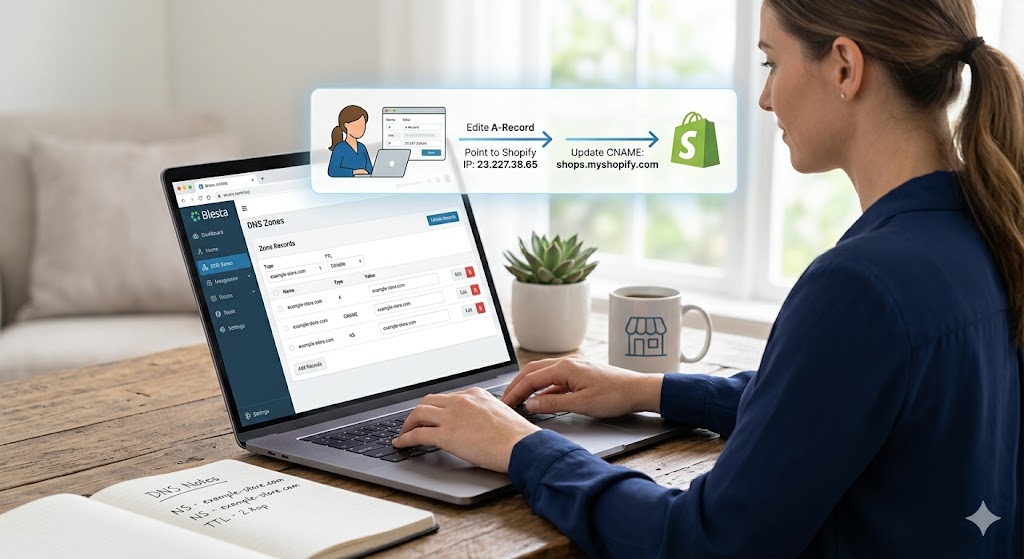
How to update DNS for Shopify?
This guide walks you through the process of updating your domain's DNS records to connect it to Shopify (if Free DNS Management is enabled and registrar module supports it) using the WCORS platform at wcors.com/order.
Please note, If you are using own nameserver (e.g. Cloudflare) it will not reflect changes setting applied through https://wcors.com/order
Using our Free DNS Management
Before editing your DNS records, verify where your domain's nameservers are hosted. If you have enabled the Free DNS Management then you may use our nameservers
ns1.dnsowl.com
ns2.dnsowl.com
ns3.dnsowl.com
Step 1: Navigate to the DNS Edit Zone
- Open your browser and go to wcors.com/order.
- Log in to your user account.
- From your client dashboard, locate your active domain service.
- Click on Manage or the settings icon corresponding to the domain you want to link to Shopify.
- Select the DNS Records option from the management menu.
Step 2: Add Shopify DNS Records
You need to modify or add two specific records to point your domain to Shopify: the Root A Record and the www CNAME Record. (if you're interested to route your website to the Shopify)
Add TXT _domainconnect www.namesilo.com/domainconnect
Add CNAME www shops.myshopify.com
Add A @ 23.227.38.65
This setup will work if you're using private nameservers or free dns management, also you can do this setup if you are using cloudflare bunnyDNS.
Critical Step: If there are any pre-existing A records pointing to old IP addresses under the "@" host, delete them to avoid configuration conflicts.
Step 3: Verify Connection in Shopify
- Log in to your Shopify admin dashboard.
- Navigate to Settings > Domains.
- Click Connect existing domain and type in your domain name.
- Click Verify connection.
Technical Considerations
-
Propagation Delay: DNS modifications do not resolve globally instantly. It can take anywhere from 5 minutes up to 48 hours for the changes to propagate across all global servers.
-
Cloudflare Proxy Warning: If you utilized Cloudflare nameservers for this process, ensure that the proxy status (the orange cloud icon) for both the A and CNAME records is set to DNS Only (grey cloud icon) during the initial Shopify verification phase.